A steady, beginner-friendly guide for anyone whose software keeps closing at the worst possible moment
Why Office 2024 Crashes Feel So Personal and Why They Almost Never Are
Few things are more frustrating than an app that closes without warning in the middle of something important. A report disappears. A presentation vanishes. The work that took an hour is suddenly uncertain. People who experience this for the first time often assume something is deeply wrong with their device or their purchase. That assumption is almost never correct. The Office 2024 crashing issues fix process is well-documented, and the causes are almost always traceable and solvable. Crashes happen for reasons that have nothing to do with the quality of the software itself. They are usually the result of a conflict between programs, a file that became corrupted, a system resource under pressure, or a setting that needs a small adjustment. This article was written for anyone who needs plain answers and practical steps rather than technical jargon. Each section addresses a specific cause and explains clearly what to do about it. Working through these fixes in order gives most users a stable, crash-free experience within a single troubleshooting session.
How Insufficient Device Memory Pushes Office 2024 Past Its Limits and Causes Crashes
Office 2024 is a capable and well-built suite, but it does require a reasonable amount of active memory to run smoothly. When a device is already running many programs at the same time, the available memory gets divided among all of them. If Office does not have enough to work with, especially while handling large files or performing complex calculations in a spreadsheet, it can become unstable and close unexpectedly. The fix for this does not require any hardware upgrade. It starts with closing programs that are not currently needed. Web browsers with many open tabs, media players, and other background applications all consume memory that Office could use instead. Restarting the device before opening Office also clears any memory that background processes have accumulated over time. Working with one or two Office apps at a time rather than opening the entire suite at once reduces the memory load further. These simple adjustments often eliminate crashes entirely without any further steps, particularly on older devices that are managing memory more carefully than newer models.
What Outdated Software Drivers Do to Office 2024 Stability Over Time
Drivers are the small programs that allow a device’s hardware to communicate with its operating system and with installed software. When drivers become outdated, they can create instability that affects all kinds of programs, including Office 2024. Graphics drivers in particular have a well-known relationship with Office crashes, especially when working with files that contain images, charts, or complex formatting. A person whose Office apps crash most often while displaying visual content may find that updating the graphics driver resolves the issue entirely. Updating drivers on a Windows device is done through the device manager, where each hardware category can be checked for available updates. On a Mac, driver updates typically arrive through the system software update process. Running these updates and then restarting the device before opening Office again often produces an immediate improvement. It is easy to overlook driver maintenance because the impact of outdated drivers is rarely obvious until something goes wrong, but keeping them current is one of the most reliable ways to maintain overall software stability across the board.
How Add-Ins and Extensions Create Hidden Conflicts That Trigger Unexpected Crashes
Office 2024 supports add-ins and extensions that expand what the software can do. These tools are useful, but they can also introduce instability if they were built for an older version of Office, if they conflict with each other, or if they have not been updated to work correctly with the current software environment. A person who installed third-party add-ins and then started experiencing crashes shortly afterwards should consider these extensions as the likely cause. The way to test this theory is to open Office in safe mode, which disables all add-ins and loads only the core program. On a Windows device, holding the control key while clicking the app icon launches it in safe mode. If the app runs stably in safe mode and crashes only in normal mode, an add-in is almost certainly responsible. Add-ins can be managed and disabled through the options menu inside each Office app under the add-ins section. Disabling them one at a time and testing after each change helps identify the specific extension causing the problem without affecting the ones that are working correctly.
Why Corrupted User Profile Data Causes Crashes That Seem Random and Unpredictable
Every Office installation stores a set of personal configuration files linked to the user account. These files hold preferences, recent file lists, custom settings, and other data that makes the software behave in a personalized way. When these files become corrupted — which can happen after an interrupted update, an unexpected shutdown, or a system error — the result can be crashes that seem completely random and unrelated to any particular action. The fix involves resetting or rebuilding the Office user profile data. On a Windows device, this is done by navigating to the AppData folder, locating the Microsoft Office folder inside it, and renaming it so that Office creates a fresh copy the next time it opens. The renamed folder acts as a backup in case the reset needs to be reversed. On a Mac, the equivalent folder is found in the Library directory. After the folder is renamed and Office is opened again, the software builds a new clean profile and often runs without the crashes that the corrupted data was causing. TomCDKey support has guided many buyers through this specific fix with step-by-step assistance when the process feels unfamiliar.
How Running Pending System Updates Resolves Compatibility Problems Behind the Crashes
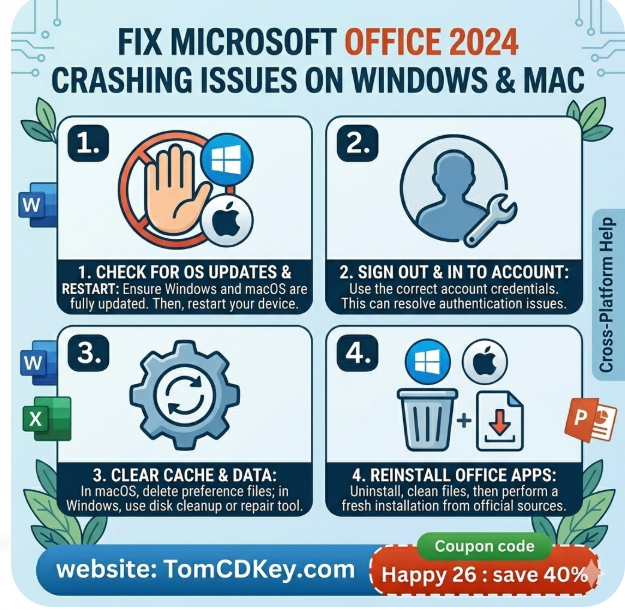
Operating system updates and Office 2024 are designed to work together. When the operating system is several updates behind, it can create compatibility gaps that cause Office to behave unpredictably. A common pattern is for crashes to begin after a large system update that Office has not yet caught up with, or conversely, after an Office update that the operating system is not yet ready to support fully. Checking for and installing all pending updates on both the operating system and within Office itself closes these gaps and often eliminates crashes that seemed unrelated to anything obvious. On a Windows device, updates are checked through the settings menu under the Windows Update section. On a Mac, they are found in the system settings under general and then software update. Office-specific updates on Windows are typically delivered through the same update system. After all updates are installed, restarting the device gives the system a chance to apply everything cleanly before Office is opened again. This step addresses one of the most frequently overlooked causes of the Office 2024 crashing issues fix process.
When a Clean Re installation Is the Most Practical Answer for Persistent Crashing
When a crash persists through every other fix, a clean re installation removes the uncertainty entirely. This means uninstalling Office completely, restarting the device, and then installing a fresh copy from scratch. Before beginning this process, the product key should be kept somewhere accessible because it will be needed to reactivate the software after the new installation. The uninstall removes all program files while leaving documents and personal files untouched. After the device restarts, the fresh installer downloads and sets up Office in a clean environment without any of the corrupted files, conflicting settings, or damaged profile data that may have accumulated over time. Reactivating with the original product key restores full functionality. TomCDKey recommends that buyers store their product key and purchase confirmation email from the moment of purchase so that any re installation process remains straightforward and does not require recovering information that is hard to find under pressure. A clean installation is the most thorough approach to an Office 2024 crashing issues fix and reliably produces a stable result.
FAQ’s
Q: Why does Office 2024 crash only when opening certain files and not others?
This usually points to a corrupted file rather than a problem with the software itself. Opening a different file of the same type to test whether it also crashes helps confirm this. If only one file causes the crash, recovering its content by copying it into a new document is the safest path forward.
Q: Can antivirus software cause Office 2024 to crash during normal use?
Yes. Some security programs scan files as they are opened or saved, and this process can interfere with Office operations in ways that cause unexpected crashes. Adding the Office program folder to the antivirus exclusion list prevents the security software from scanning those files mid-operation and often resolves the instability immediately.
Q: Is there a way to recover unsaved work after an Office 2024 crash?
Yes. Office 2024 includes an auto-recovery feature that saves a temporary version of open files at regular intervals. After a crash, reopening the relevant app usually displays a document recovery panel showing the most recent auto-saved version. Enabling auto-recovery in the app settings and setting the interval to every five minutes reduces the risk of losing significant work.
Q: Does running Office 2024 on an older device increase the likelihood of crashes?
It can, particularly if the device is at or near the minimum system requirements. Older devices with limited memory or storage may struggle with large or complex files. Closing background programs, keeping the device free of unnecessary software, and working with smaller files where possible helps reduce the strain and makes crashes less likely.
Q: Should a person contact support if crashes continue after trying all available fixes?
Yes. If crashes persist after working through the standard fixes, contacting the software publisher’s support team with a description of the crash pattern, the operating system version, and any error messages that appeared is the appropriate next step. Having the product key and purchase confirmation ready speeds up the support process considerably.
A Closing Thought for Anyone Who Has Reached the End of Their Patience With Crashes
A crashing app is not a permanent condition. It is a temporary conflict between the software and something in the environment around it, and that conflict has a resolution. The fixes in this article cover the causes that account for the overwhelming majority of Office 2024 crash reports, and working through them in order gives any beginner a clear and realistic path back to stable, reliable software. The work waiting on the other side of this process is well worth the time it takes to get there.