A calm, practical guide for anyone staring at a file that suddenly refuses to open
Why Corrupt Documents Feel Like a Crisis and Why Most of the Work Is Still Recoverable
Opening a file that contains hours of careful work and seeing an error message instead of the document is one of the most sinking feelings a person can experience at a desk. The immediate thought is that everything is gone. In most cases, that thought is wrong. File corruption is common, it happens to experienced users and beginners alike, and the vast majority of affected documents can be partially or fully recovered using tools that are already built into Office 2024. A corrupt file is not a deleted file. The data is usually still there, just organized in a way the software can no longer read cleanly. Understanding this distinction changes everything. It turns a moment of panic into a solvable problem with clear steps. Anyone who needs to repair corrupt Office 2024 document files can work through a small set of practical methods in order and recover most, if not all, of their content. This article walks through each method in plain language so that even a first-time user can follow along without needing any technical background whatsoever.
What Actually Causes a Document to Become Corrupt in the First Place
Understanding the cause helps a person respond to corruption more calmly and also helps prevent it from happening again. The most common cause is an unexpected interruption during the process of saving a file. If a device loses power, the internet drops while saving to a cloud location, or the software crashes mid-save, the file can be left in an incomplete or unreadable state. Saving a document to a storage device that is running low on space can produce the same result. Transferring files between different devices using damaged cables or unreliable drives also introduces the kind of data errors that lead to corruption. Malware is a less frequent but real cause, particularly for devices that run without updated security software. Finally, opening and editing a file across multiple devices simultaneously without proper syncing can create conflicts that damage the document’s internal structure. Knowing these causes does not bring back a lost file, but it does give a person the information needed to handle their documents more carefully going forward and reduce the risk significantly.
How the Built-In Open and Repair Feature Works for Word and Excel Files
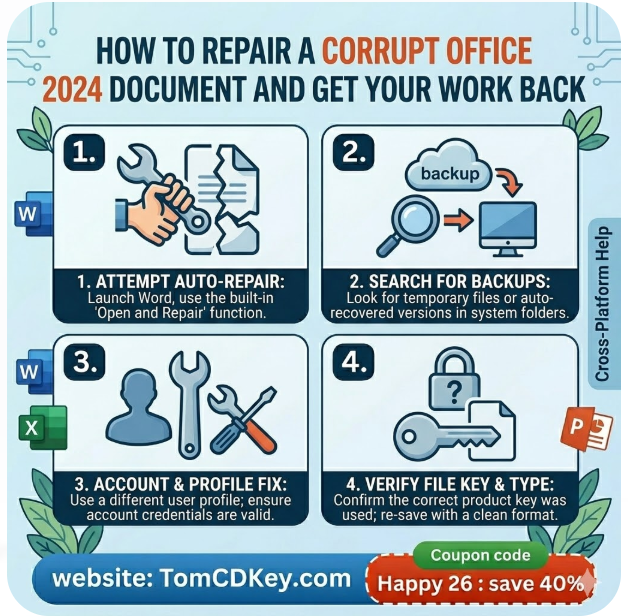
Office 2024 includes a native recovery feature that many users never discover because it is tucked just out of sight. When a Word or Excel file fails to open normally, the open and repair function gives the software permission to attempt a deeper read of the file’s data, bypassing the damaged sections where possible and reconstructing the readable parts into a usable document. Accessing this feature requires opening Word or Excel first, then selecting the open option from the file menu, navigating to the damaged file, and clicking the small arrow beside the open button rather than clicking the button itself. A drop down menu appears with the option to open and repair. Selecting this begins the recovery process. For mildly corrupted files, this method often restores the full document with no missing content. For more severely damaged files, it may recover most of the text and data while losing some formatting or recent changes. Either outcome is significantly better than losing the entire file, and this should always be the first method a person tries when attempting to repair corrupt Office 2024 document files.
How to Extract Text From a Damaged Word Document Using the Recover Text Feature
When the open and repair method does not fully restore a Word document, a second built-in option called recover text from any file offers another layer of recovery. This approach focuses specifically on the raw text content of the file, setting aside formatting, images, and embedded objects entirely. The goal is to retrieve the words on the page, which are almost always still present even when the document structure is too damaged to display normally. Accessing this feature involves opening the open dialog in Word, locating the damaged file, and changing the file type selector at the bottom of the dialog from the default option to recover text from any file before opening. Word then attempts to read only the text content and displays whatever it can retrieve in a new document. The recovered content may include some unusual characters or formatting artefacts that need to be cleaned up manually, but the core text is generally intact. This method works particularly well for long reports, essays, and written documents where the text itself is the most valuable part of the file.
What Auto Recover Files Are and How to Find Them After an Unexpected Shutdown
Office 2024 saves temporary recovery versions of open documents at regular intervals in the background. These AutoRecover files are stored in a dedicated folder on the device and are designed specifically for situations where the software closes unexpectedly before a manual save is completed. Most users are not aware these files exist until they need them. When Office is reopened after a crash or unexpected shutdown, a document recovery panel usually appears automatically and displays any available AutoRecover versions of recently open files. Selecting the most recent version from this panel and saving it immediately as a new file preserves whatever content was captured before the interruption. If the recovery panel does not appear automatically, the Auto Recover folder can be accessed manually through the file options in Word or Excel under the save section, which shows the folder path where temporary files are stored. Navigating to that folder and opening the most recent file matching the document name often retrieves a version that is very close to the last saved state. TomCDKey recommends enabling AutoRecover and setting the save interval to five minutes as a simple habit that protects work on any device.
How Changing the File Format Can Unlock Content Trapped in a Damaged File
Sometimes a document is too damaged for Office to repair directly, but its content can still be accessed by changing the approach entirely. Saving or converting the file to a different format strips away the complex internal structure that may be causing the corruption and allows the raw content to come through. For a damaged Word document, renaming the file extension from docx to rtf and then opening it in Word is one such approach. Rich text format is simpler in structure, and Office can sometimes read content from a damaged docx file more successfully when it treats the file as rtf instead. For Excel files, attempting to open a damaged xlsx file as a csv removes all the spreadsheet formatting and gives the software a simpler data structure to work with. The recovered content will need to be reformatted after recovery, but having the data is far more valuable than the formatting. This method requires a little patience and some willingness to experiment, but it has successfully recovered content from files that resisted every other approach. It is a reliable middle step before considering more advanced recovery options.
Why Keeping a Reliable Source for Your License Matters During Document Recovery Situations
A corrupt document situation sometimes reveals a second problem — the Office installation itself may need to be repaired or reinstalled as part of the recovery process. A person who is troubleshooting a damaged file and discovers that their Office apps are also behaving unpredictably may need to run the built-in repair tool or, in more serious cases, perform a full re installation. In either scenario, having a valid and retrievable product key is essential. A buyer who purchased through a reliable seller and kept their confirmation details in a safe place can reinstall and reactivate without any delay. TomCDKey makes it straightforward for buyers to access their purchase history and product keys, which means a re installation during a stressful file recovery situation does not become an additional problem layered on top of the first one. The ability to repair corrupt Office 2024 document files reliably is connected, in practical terms, to having a trustworthy and accessible license from the beginning. One problem is about the file. The other is about the foundation beneath it. Both deserve the same level of care.
FAQ’s
Q: Is it always possible to fully recover a corrupt Office 2024 document?
Not always, but partial recovery is possible in most cases. Severely damaged files may lose some content or formatting, but the core text and data are often still retrievable using the built-in recovery tools. The earlier the recovery attempt is made after the corruption occurs, the better the chances of getting the most content back.
Q: Can a corrupt Excel file be repaired the same way as a Word document?
Yes. Excel includes the same open and repair function as Word, accessed through the same steps in the open dialog. Excel also offers a calculate option during repair that attempts to reconstruct formula results from the underlying cell data. For spreadsheets with important figures, this can recover calculated values even when formulas are partially damaged.
Q: Does saving files to a cloud location prevent corruption from happening?
It reduces the risk significantly. Cloud-based saving creates backup versions automatically and protects against local hardware failures. However, corruption can still occur if the internet connection drops mid-save or if the same file is edited from multiple locations simultaneously without proper syncing. Keeping auto-versioning enabled in the cloud service adds another layer of protection.
Q: How often should AutoRecover be set to save to minimise data loss during a crash?
Setting the Auto Recover interval to five minutes offers a good balance between protection and performance for most users. Users who work with very large or complex files may prefer a slightly longer interval to prevent the background save from slowing down their work. The setting is found in the save section of the Office options menu in any app.
Q: Can a file corrupted on one device be recovered on a different device?
Yes. Moving the damaged file to a different device and attempting the same recovery steps there sometimes produces better results, particularly if the second device has a more recent or differently configured installation of Office. The corruption exists in the file itself, not in the device, so the file carries the same data regardless of where it is opened.
A Closing Thought for Anyone Who Found This Article in a Moment of Real Worry
A corrupt document is one of those experiences that feels permanent until it turns out not to be. The steps in this article represent the same methods that experienced users reach for when their own work is at risk, and they work far more often than people expect when they first encounter the problem. Staying calm, working through each method in order, and giving each approach a genuine attempt is the most reliable path back to the content that matters. The work is almost certainly still there, waiting to be found.