A patient, practical guide for anyone whose software refuses to start and just needs clear answers
Why Office 2024 Sometimes Refuses to Open and What That Silence Actually Means
There is a specific kind of dread that comes from clicking an app and watching nothing happen. No loading screen. No error message. Just silence. For someone who needs to finish a document or prepare a presentation, that moment can feel genuinely alarming. The instinct is to click again, then again, and then to wonder whether the entire purchase was a mistake. That reaction is completely natural, and it is also unnecessary. An Office 2024 not opening fix is almost always within reach, and the cause is almost always something small. The software itself is not broken. Something in the environment around it is creating a block, and that block can be identified and cleared with a calm and methodical approach. This article walks through the most common reasons Office 2024 refuses to open and provides practical, beginner-friendly steps for each one. No advanced knowledge is required. Just a willingness to try a few things in order and the patience to let each step do its work before moving to the next.
How a Simple Restart Often Solves the Problem Before Anything Else Is Needed
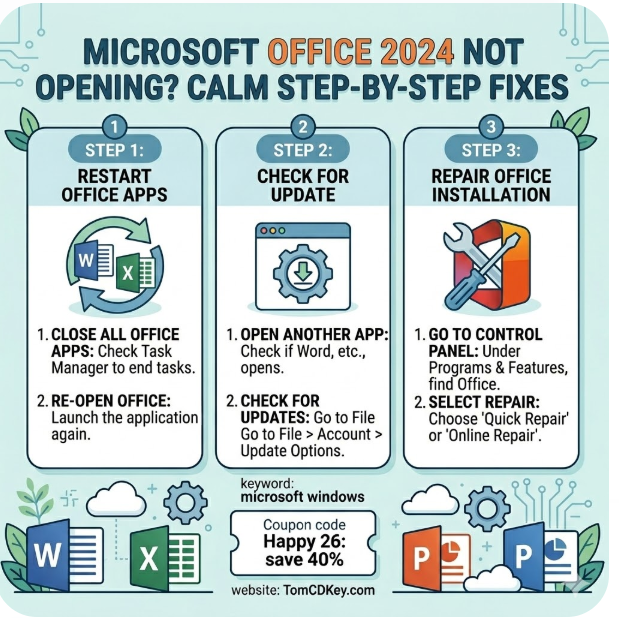
It sounds too simple to be useful, but restarting the device is the single most effective first response to Office 2024 not opening. When a device has been running for a long time without a restart, background processes accumulate, memory gets cluttered, and small conflicts develop between running programs. These conflicts can prevent an app from launching even when everything appears to be in order. A full restart clears the active memory, closes background processes that may be interfering, and gives the device a clean starting point. Many people try everything except this because it feels too basic to solve a real problem. In practice, a restart resolves a surprising number of software launch failures without requiring any further investigation. After the device has restarted completely and the desktop has fully loaded, the Office app should be opened again as normal. If it opens cleanly at this stage, no further steps are needed. If the problem continues, the cause is something more specific that the following sections address directly.
What a Corrupted Installation Looks Like and How the Repair Tool Fixes It
If a restart does not resolve the issue, the next possibility is a corrupted installation. This happens when one or more of the files that make up the Office suite becomes damaged, incomplete, or missing. It can occur during an interrupted update, after an unexpected shutdown, or sometimes for no obvious reason at all. The good news is that Office 2024 includes a built-in repair function specifically designed for this situation. On a Windows device, the repair option is found by going to the control panel, opening the programs section, locating Office in the list of installed software, and selecting the option to modify or repair. Two repair types are typically available — a quick repair that works offline and a more thorough online repair that replaces damaged files by downloading fresh versions. Starting with the quick repair is the sensible approach. If the quick repair does not restore normal function, running the online repair afterwards usually resolves deeper file issues and represents one of the most reliable Office 2024 not opening fix steps available.
How Conflicting Startup Programs Can Silently Prevent Office From Launching
Modern devices run many programs in the background, and some of those programs start automatically when the device turns on. Occasionally, one of these background programs conflicts with Office in a way that prevents any Office app from opening. The conflict is silent — no error appears, the app simply never loads. Identifying whether this is the cause requires temporarily disabling startup programs and trying to open Office again. On a Windows device, this is done through the task manager by navigating to the startup tab and disabling non-essential programs before restarting the device. If Office opens normally after this process, the conflict can be narrowed down by re-enabling programs one at a time until the responsible program is identified. Security software, system optimisation tools, and older utility programs are the most frequent culprits in these situations. Once the conflicting program is identified, either updating it or adjusting its settings to exclude Office processes from its monitoring usually resolves the conflict permanently without requiring either program to be removed.
Why an Expired or Unlined Account Can Stop Office 2024 From Opening Correctly
Office 2024 is linked to a personal account during the activation process. If something changes with that account — the password is reset, the account is signed out, or the device loses its connection to the account credentials — the software may refuse to open or may open briefly and then close immediately. This is more common than people expect, especially after a device update or a password change on the associated account. The fix involves checking the account status inside any Office app that can be opened, or through the device’s account settings. Signing back in with the correct credentials re-establishes the link and allows the apps to function normally. If the account details have been forgotten, the account recovery process on the software publisher’s sign-in page walks through identity verification and password reset clearly. TomCDKey advises buyers to keep their account sign-in details stored somewhere safe at the time of purchase, because this small habit prevents what would otherwise become a frustrating and time-consuming recovery process later.
How to Use the Built-In Diagnostic Tools to Find Problems That Are Not Obvious
When the straightforward fixes do not resolve the issue, the device’s own diagnostic tools can help identify what is happening beneath the surface. On a Windows device, the event viewer records every significant system event, including failed application launches, with a timestamp and a brief description of the cause. Searching for events related to Office around the time the launch failed often reveals a specific error code or process name that points directly to the root cause. This information can then be used to search the software publisher’s support database for a targeted resolution. On a Mac, the console application serves a similar purpose and logs app crashes and failures with detailed technical notes. Using these tools does not require deep technical knowledge — it simply requires finding the relevant log entry and reading what it says. A person who finds an unfamiliar error code can contact TomCDKey support or search the code on the publisher’s official help pages to get a clear explanation and a specific fix tailored to that exact problem.
When a Full Re-installation Is the Cleanest Path to Getting Office Working Again
There are situations where the damage to an installation is deep enough that repairs do not fully restore normal function. In these cases, uninstalling Office completely and performing a fresh installation is the most reliable path to a working software suite. Before uninstalling, a person should confirm they have the original product key saved somewhere accessible, because it will be needed to reactivate the software after the fresh installation. The installation process removes all Office files from the device. After that is complete, restarting the device and running the installer again from scratch gives the software a clean environment to set up properly. The fresh installation goes through the same process as the original setup, and once complete, the product key is entered again through the official setup page. A clean re-installation resolves the vast majority of cases where the Office 2024 not opening fix has not responded to any other approach. It is not a complicated process, and the result is a fully functional installation that behaves exactly as it should from that point forward.
FAQ’s
Q: Why does Office 2024 open briefly and then close on its own without any warning?
This usually points to an account authentication issue or a damaged program file. Checking that the linked account is still signed in correctly is the first step. If the account is fine, running the built-in repair tool from the control panel often resolves the underlying file damage that causes the app to close immediately after launch.
Q: Is it possible that a recent Windows or macOS update caused Office 2024 to stop opening?
Yes, this can happen. Operating system updates occasionally change system settings or file permissions in ways that affect how installed software launches. Running the Office repair tool after a system update usually restores normal function. If the problem began immediately after an update, this is the most likely cause.
Q: Can having multiple user accounts on one device cause Office to stop opening for one user?
Yes. Office is linked to a specific user account during activation. If a different user account on the same device launches the software, it may not have the correct credentials and will fail to open or prompt for sign-in. Each user account needs to be signed in with the correct credentials associated with the product license.
Q: How does a person find their original product key if they need to reinstall Office 2024?
The product key is typically included in the purchase confirmation email from the seller. It is also accessible through the account used during the original activation process. Keeping the purchase confirmation email saved in a reliable location from the time of purchase makes this retrieval quick and straightforward whenever it is needed.
Q: Does the repair tool change any documents or files saved on the device?
No. The repair tool only works on the Office program files themselves. It does not touch, move, or alter any documents, spreadsheets, or other files created using the software. A person’s work remains exactly where it was before the repair process begins.
A Closing Thought for Anyone Who Has Spent Too Long Staring at a Frozen Screen
Software problems feel larger than they are in the moment. An app that will not open is not a permanent failure — it is a puzzle with a known set of solutions, and this article has walked through the most reliable ones in order. Most people who reach the end of this process find that their software is working again before they need to try every step. The important thing is to stay calm, try one fix at a time, and trust that a working solution is closer than the frustration makes it feel.